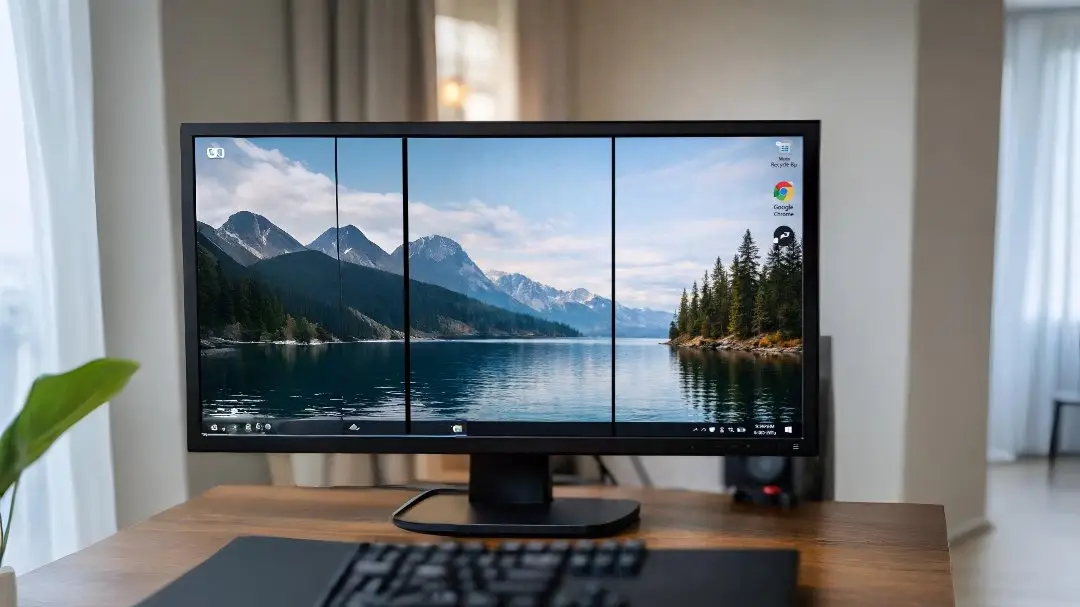
Seeing a black line on monitor can instantly make anyone’s blood pressure spike — especially when you’re in the middle of work, editing, or gaming. But before panic sets in, let’s clear one thing up: a black line on monitor isn’t always a sign that your display has suddenly turned against you. In fact, this issue has several known causes, each with its own straightforward explanation and solution.
Why Black Lines Appear on Your Monitor
Let’s explore the most common causes — from innocent software quirks to deep hardware woes.
1. Dead or Stuck Pixels
Your screen is made up of millions of tiny pixels. If an entire row of pixels stops working, you see a straight black line. These are dead pixels and often permanent. Stuck pixels (showing the wrong colour) might be fixable with special tools.
💡 Think of pixels like little streetlights: if a whole street goes dark, you get a line of black. Tragic for pixels, traumatic for you.
2. Faulty or Loose Display Cable
For external monitors, the cables connecting your PC to the screen — HDMI, DisplayPort, VGA — must be fully solid. A loose plug, bent wire, or damaged cable often results in weird lines or visual artefacts across your screen.
This is one of the most common and easiest to fix issues.
3. Outdated or Corrupted Graphics Drivers
Your graphics drivers act as translators between your PC and monitor. If they are outdated, corrupt, or mismatched after a system update, the monitor might display lines or distortion.
This often happens after:
- a major OS update
- a graphics card driver update
- installing certain software
4. Incorrect Display Settings
If your monitor is set to a resolution or refresh rate it doesn’t support, you might see lines or artifacting. This is especially common after Windows updates or driver changes.
5. Physical Damage to the Panel
If your screen has suffered impact, pressure, or wear — the internal layers of the display panel can break or detach, causing permanent black lines.
This is unfortunate, but among the most common hardware failures.
6. Graphics Card or GPU Problems
Although rarer, issues with your computer’s GPU — whether overheating, hardware failure, or even loose seating — can cause display anomalies that include black lines.
How to Diagnose the Black Line on Monitor
Before spending money or trashing your setup, follow these logical steps to pinpoint the cause:
✅ Step 1: Restart & Reconnect Everything
Turn off your device. Unplug all cables. Wait about a minute. Reconnect and power up again. Often, this simple reset can clear weird temporary glitches.
✅ Step 2: Try Another Device
Connect the monitor to a different computer or laptop. If the line disappears, the issue likely lies with the original computer. If it stays, your monitor might be at fault.
This step is like switching Sherlock Holmes’ magnifying glass from one suspect to another.
✅ Step 3: Check the Cables
Life hack: cables wear out. A bent or frayed HDMI or DisplayPort cable can cause weird visual problems. Switch cables, and if you have different ports, try those too.
✅ Step 4: Adjust Display Settings
Go to your PC’s display settings and ensure:
- The resolution matches the monitor’s native resolution
- Refresh rate is supported (like 60Hz, 120Hz, or 144Hz depending on your screen)
Wrong settings can make even healthy monitors behave weirdly.
✅ Step 5: Update (or Roll Back) Drivers
Head to the official website for your GPU brand — NVIDIA, AMD, or Intel — and update to the latest graphics driver. If the issue started after a driver update, consider rolling back to a previous version.
✅ Step 6: Use Monitor Self-Test Tools
Many modern monitors have built-in self-test modes. Unplug the video cable and see if the line still appears.
- If it still shows, the monitor panel or hardware is likely damaged.
- If it disappears, the problem lies with your computer or connection.
Tech Trick: If Black Lines Disappear in Screenshots
Check if the black line appears in screenshots:
- Yes → Software/driver issue
- No → Truly hardware display problem on monitor itself
Black line on Monitor Fixes Based on Causes
Now that we’ve diagnosed the issue, let’s solve it like a pro.
1. Cables & Connections
✔️ Unplug and reconnect all video cables
✔️ Replace old or damaged cables
✔️ Try another port like DisplayPort instead of HDMI
👉 Most simple black line problems are solved here — and you didn’t even need to call tech support.
2. Update or Reset Display Settings
If the resolution or refresh rate is mismatched, you could be sending bad instructions to your monitor.
✔ Go to Display Settings
✔ Set recommended resolution
✔ Adjust refresh rate to a supported level
This little tweak often eliminates lines caused by odd system settings.
3. Graphics Drivers
Drivers getting confused isn’t a joke; they handle everything you see on screen.
✔ Update drivers from NVIDIA/AMD/Intel websites
✔ Roll back drivers if issues started after updates
✔ Use official tools (like NVIDIA GeForce Experience) to ensure correct installation
A fresh, clean driver install can fix weird graphical glitches including black lines.
4. Monitor Firmware or Factory Reset
Some monitors let you reset to factory defaults — especially helpful if settings got corrupted:
✔ Use the monitor’s on-screen menu
✔ Choose Factory Reset
✔ Restart monitor afterward
This resets internal settings and can remove display errors that originated from misconfiguration.
5. Pixel Fix Tools
If the line is caused by dead or stuck pixels, some pixel fixing tools can help. These programs cycle colours rapidly to awaken stuck pixels — but they don’t always work, especially with hardware damage.
Software examples:
- JScreenFix
- Online pixel tester tools
No guarantees, but no harm in trying before spending money either.
When It’s Time to See a Professional
Sometimes no matter how many logical steps you take — the black line persists. Hoping it’s temporary won’t make it go away forever.
Consider professional help if:
- The line stays even in self-test mode with no input
- Physical damage is visible
- You suspect panel damage or ribbon cable failure
- You lack the tools or confidence to open hardware
Pro techs can diagnose ribbon cable issues, panel replacement, or GPU problems within minutes.
When You Should Just Replace the Monitor
Reality check: some issues mean the monitor itself is dying. It’s like a car with a busted engine — you can fix it, but parts and labour might cost more than a new one.
Signs it’s time for a new screen:
- Black line can’t be fixed through software/temp fixes
- Line continues across power cycles and devices
- Warranty expired and replacement parts are costly
- Lines increase over time instead of disappearing
Often, modern displays aren’t designed for easy part replacement. It’s simply more cost-effective to upgrade.
Quick Tips & Preventive Care
✔ Avoid dropping or putting pressure on your monitor
✔ Keep cables neat to reduce strain and damage
✔ Keep your system drivers up to date
✔ Clean dust from vents and fans to prevent overheating
A monitor is like a pet: treat it well and it’ll behave.
Summary: What Causes Black Lines on Monitors?
| Cause | Fix Difficulty | Likely Fix? |
|---|---|---|
| Loose cable | Easy | High |
| Wrong settings | Easy | High |
| Driver issues | Moderate | Medium-High |
| Dead/stuck pixels | Hard | Low-Medium |
| Physical damage | Hard | Low |
| GPU/Hardware failure | Advanced | Low |
Final Thoughts
A black line on your monitor doesn’t always mean doom. Sometimes it’s just a loose cable or driver bug that can be fixed in minutes. Other times, it’s a sign the screen is nearing retirement.
By following this guide, you’ll be able to:
- Diagnose the problem smartly
- Fix common causes yourself
- Know when to get expert help
- Avoid unnecessary expenses
With a bit of logic and patience, you’ll beat that black line at its own game!
